
NewCars-Data.com- In today’s digital world, staying connected while driving is more important than ever. With Apple CarPlay and Android Auto, you can seamlessly integrate your smartphone with your vehicle’s infotainment system, giving you access to music, navigation, calls, and messages—all while keeping your eyes on the road.
If you’ve been wondering how to set up these systems in your car, you’re in the right place. Here’s a simple, step-by-step guide on how to set up Apple CarPlay or Android Auto, depending on your smartphone.
What is Apple CarPlay and Android Auto?
Before diving into the setup process, it’s essential to understand what Apple CarPlay and Android Auto are. These technologies allow you to mirror your smartphone’s interface onto your car’s infotainment screen.
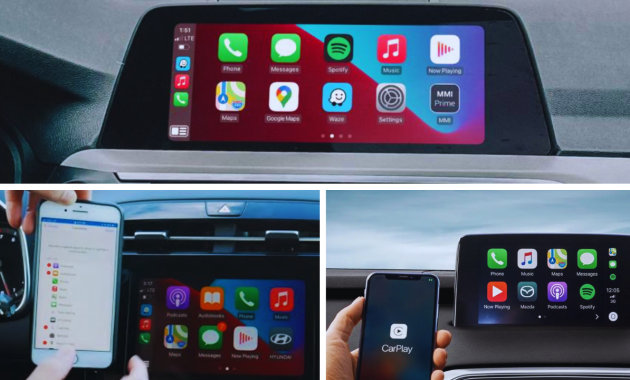
Once connected, you can use voice commands, touch controls, or knobs on your dashboard to access a range of features from your phone.
- Apple CarPlay is designed for iPhone users, allowing access to apps such as Maps, Music, Messages, and more, directly on your car’s display.
- Android Auto is the equivalent for Android users, offering access to Google Maps, Google Play Music, and compatible third-party apps.
Both systems are designed with safety in mind, reducing distractions by offering simple, intuitive interfaces and voice-controlled features.
Requirements for Setting Up Apple CarPlay or Android Auto
Before you can start the setup process, you’ll need a few things:
1. Compatible Vehicle
Not every car comes with Apple CarPlay or Android Auto. You’ll need to ensure that your vehicle’s infotainment system is compatible with one or both of these technologies. Many newer models (from 2016 onward) come equipped with these systems, but it’s always a good idea to check your owner’s manual or visit the manufacturer’s website.
2. Smartphone
- Apple CarPlay requires an iPhone 5 or newer, running iOS 7.1 or later.
- Android Auto requires a smartphone running Android 5.0 (Lollipop) or higher.
- USB Cable (Optional for Wired Connection)
If your car supports a wired connection, you’ll need a USB cable that’s compatible with your phone. While Apple CarPlay and Android Auto can often work wirelessly, a wired connection may provide a more stable and faster experience, especially during the initial setup.
3. Bluetooth (For Wireless Connections)
For wireless connections, your car’s infotainment system must support Bluetooth pairing for CarPlay or Android Auto, and your phone must have Bluetooth enabled.
How to Set Up Apple CarPlay?
Step 1: Check for CarPlay Compatibility
- First, make sure your car is compatible with Apple CarPlay. You can check the infotainment settings or refer to your car’s manual. If your car supports it, CarPlay will be listed as an available feature.
Step 2: Connect Your iPhone
- Wired Connection: Plug your iPhone into the car’s USB port using a Lightning cable. If your car is equipped with CarPlay, the infotainment system will automatically recognize the connection and prompt you to enable CarPlay.
- Wireless Connection: If your car supports wireless CarPlay, make sure both Bluetooth and Wi-Fi are enabled on your iPhone. Follow the instructions in your car’s infotainment settings to pair the device wirelessly. You may need to press the voice command button on your steering wheel to activate the wireless setup.
Step 3: Enable CarPlay on Your iPhone
Once your iPhone is connected, you’ll need to enable CarPlay on your iPhone. Follow these steps:
- Open Settings on your iPhone.
- Scroll down and tap General.
- Tap CarPlay.
- Select your car from the available list of vehicles.
This will allow your car to communicate with your iPhone, and your car’s display should mirror your iPhone’s interface. From here, you can use Siri voice commands to interact with your apps.
Step 4: Start Using CarPlay
Once connected, you can start using CarPlay. Your iPhone’s apps will be displayed on your car’s screen. You can access maps for navigation, music for entertainment, and messages for communication—all through your car’s touchscreen or with voice commands.
How to Set Up Android Auto?
Step 1: Check for Android Auto Compatibility
As with Apple CarPlay, you need to ensure your car’s infotainment system supports Android Auto. Newer models typically include this feature, but checking your car’s manual is the best way to confirm.
Step 2: Install the Android Auto App (If Needed)
Android Auto used to require a separate app, but since 2020, it has been built directly into Android phones running Android 10 or later. If your phone is running Android 9 or earlier, you’ll need to download the Android Auto app from the Google Play Store.
Step 3: Connect Your Android Phone
- Wired Connection: Connect your Android phone to your car’s USB port using a compatible USB cable. After plugging it in, the infotainment system should prompt you to allow Android Auto access. Follow the on-screen instructions to establish the connection.
- Wireless Connection: If your car supports wireless Android Auto, enable Bluetooth and Wi-Fi on your Android phone. In the Android Auto settings, select the option to connect wirelessly, and follow the prompts on the car’s screen to pair your phone.
Step 4: Enable Android Auto on Your Phone
To enable Android Auto on your phone:
- Open the Android Auto app (or go to Settings > Connected Devices > Connection Preferences > Android Auto).
- Select your vehicle from the list of available connections, and allow Android Auto to sync with your car’s infotainment system.
Step 5: Start Using Android Auto
Once the connection is established, your car’s infotainment screen will mirror your Android phone’s interface. From here, you can use Google Maps for navigation, listen to music or podcasts, and make hands-free calls—all controlled through voice commands or the car’s touchscreen.
Troubleshooting Tips
Setting up Apple CarPlay or Android Auto should be a straightforward process, but sometimes things don’t go as planned. Here are a few troubleshooting tips to help:
- Check Your Cables: If you’re using a wired connection, ensure that your USB cable is in good condition and that it’s properly plugged in. Sometimes, a faulty or damaged cable can prevent the connection from working.
- Update Software: Both your phone and your car’s infotainment system should be running the latest software. Check for updates on both devices to ensure compatibility with CarPlay or Android Auto.
- Restart Devices: If CarPlay or Android Auto is not working, try restarting both your phone and your car’s infotainment system. This can help clear any temporary software glitches.
- Enable Permissions: Make sure that the necessary permissions are enabled on your phone, such as Bluetooth, Wi-Fi, and USB access, to ensure a smooth connection.
Conclusion
Setting up Apple CarPlay or Android Auto in your vehicle is a simple and effective way to bring your smartphone’s capabilities into your car. Whether you’re an Apple or Android user, both systems allow for seamless integration with your car’s infotainment system, making it easier and safer to stay connected while driving.
By following the steps outlined above, you can start using these technologies today and enjoy a more connected and convenient driving experience.


